
ImageCycler User's Guide

Introduction
ImageCycler is a slide show program that cycles through and displays photos in a designated folder.ImageCycler is not just another slide show program. It has a lot of features that other slide show programs do not have:
|
ImageCycler's user interface is simple, intuitive, friendly, and easy to understand. If you have used other slide show programs before, you should not have any problems using ImageCycler. However, there are some special features offered by ImageCycler that are not found in other slide show programs (like right-clicking on a folder in Windows Explorer to bring up ImageCycler and running multiple instances of ImageCycler at the same time). You will need to refer to this User's Guide if you are interested in finding out how to use these special features. Here is everything you need to know about ImageCycler.
Installation
The installation file ImageCyclerSetup.exe can be downloaded from our Download page. After you have downloaded the ImageCyclerSetup.exe file to your computer, double-click on it. When the installation screen shows up, just accept all the default settings to complete the installation.
Once the installation process is completed, ImageCycler will automatically be launched. If ImageCycler is not launched automatically, you can launch the program by clicking Start, Programs, ImageCycler, ImageCycler. Or you can launch the program by double-clicking on the ImageCycler icon on your desktop (if you choose to add the shortcut there during installation).
Registration
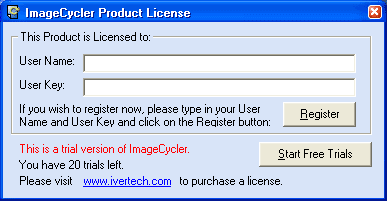
When ImageCycler first starts up, a Product License form will be displayed. If you do not have a User Name and a User Key, you can purchase them by clicking on the Buy Now link. After you purchase your User Name and User Key, you can enter them in the text boxes and click on the Register button. Make sure that you are connected to the Internet before you register.
You can use the User Name and User Key only once. The User Name and User Key cannot be re-used after you have registered with us. Please do not share them with others. If you do not have the User Name and User Key but would like to try the program, click on the Start Free Trials button. You can run slide shows up to 20 times using the free trial version.
Main Screen
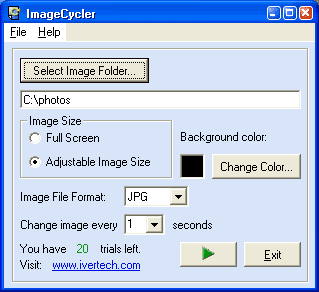
The next screen is the main screen for ImageCycler. You can select the folder where your images are located, choose your image size display options, change background color of the slide show, specify image file format, set the refresh rate of the slide show, and play the slide show. Each feature will be explained in detail below.
Select Image Folder
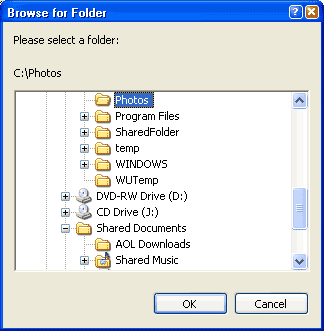
Let's say you have some JPG pictures saved in C:\Photos and you would like to make a slide show out of them using ImageCycler. The first step is to click on the "Select Image Folder..." button. A "Browse for Folder" window will be displayed and you can select any folder that contains image files. In this case, we select the C:\Photos folder and click on the "OK" button.
Right-Click on Windows Explorer
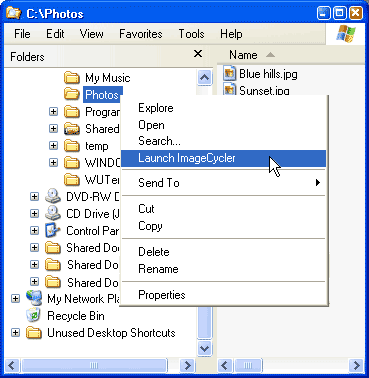
An alternative way of selecting your image folder is by using the context menu in Windows Explorer. Just browse to a folder using Windows Explorer and right-click on it. Click on "Launch ImageCycler" from the menu and a new instance of ImageCycler will be launched with the image folder defaulted to the folder that you selected from Windows Explorer. Using Windows Explorer, you can browse to a different folder, right click on it, and choose "Launch ImageCycler" again to run another instance of ImageCycler. There is no limit to how many instances of ImageCycler you can run (as long as your have enough memory in your computer). This is a very convenient and unique way of running slide shows that you do not find in any other slide show programs.
Image Size
Under the Image Size section, you can choose either "Full Screen" or "Adjustable Image Size." If you choose "Full Screen", all the photos in your image folder will be stretched proportionally to cover your whole monitor screen. It does not matter how small or big the pictures are, they will be enlarged or shrunk proportionally to fit nicely to your screen. If you choose the "Adjustable Image Size" option, you can adjust ImageCycler's display window when the slide show is running by dragging the lower right corner of the window with your mouse. You can enlarge or shrink the window to any size you like and your photos will be enlarged or shrunk accordingly to fit to the window. Please be assured that the original photo size does not change when the slide show is run. ImageCycler only manipulates and displays a copy of your photos and not the original ones.
Background Color
As ImageCycler tries its best to stretch the photos proportionally to fit to the screen size that you specify, there might be cases where left over white space simply cannot be filled. ImageCycler paints the white space with the background color of your choice. Just click on the "Change Color..." button to choose any color you like.
Image File Format
From the Image File Format drop down box, there are 7 file formats available: BMP, DIB, EMF, GIF, ICO, JPG, and WMF. Just choose the file format of the image files in your folder and ImageCycler will pick them up for slide show. The default is set to JPG, which is the most common file format for digital photos.
Refresh Rate
From the "Change image every ? seconds" drop down box, you can select the refresh rate of your slide show. If you choose 3 for this drop down box, ImageCycler will display the next photo in your image folder every 3 seconds.
Run ImageCycler
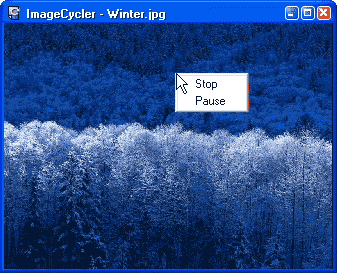
When you are ready to run the slide show, just click on the run button (the button with a green triangle inside). ImageCycler will cycle through all the files in the image folder with the file format that you specify (in this case JPG) and display them one by one, under the refresh rate that you set (in this case 3 seconds for each image). ImageCycler will recycle the images when it reaches the last image in your folder. The slide show will not stop unless you tell it to. To stop the slide show, simply right-click anywhere on the window and choose "Stop" from the menu. You can also pause the slide show by choosing the "Pause" menu. To resume slide show, just right click and choose "Resume." By clicking on the "Stop" menu, your previous settings (like image folder location, screen size, background color, file format, refresh rate, etc) will be saved and ImageCycler will remember them the next time it is launched. If you click on the "x" button on the top right corner while photos are being displayed, your previously changed settings (if there are any) will be lost.
Help
If you need help using ImageCycler, click on the Help menu on the main screen and choose Online User's Guide. You need to connect to the Internet to view the User's Guide.
Uninstallation
If for any reason you need to uninstall ImageCycler, you can go to Start, Programs, ImageCycler, and choose Uninstall ImageCycler. Please be assured that ImageCycler does not contain any adware, spyware, or malware. It will not interfere with other programs on your computer.
System Requirements
Software Requirements
ImageCycler can be installed on computers that run on any of the operating
systems below:
Microsoft Windows Vista/7/8
Microsoft Windows XP
Microsoft Windows Me
Microsoft Windows 98
Microsoft Windows 95
Microsoft Windows 2000
Windows Server 2003 Family
Microsoft Windows NT 4.0
Hardware Requirements
Intel/AMD 90 MHz processor with a minimum of 32 MB of memory (96 MB recommended).